
How to Set Up Google Analytics 4 on Your Website — No Code Needed
Google Analytics 4 shows you who visits your website and what they do. This step-by-step guide gets it set up in 15 minutes — no developer or coding required, just copy and paste.

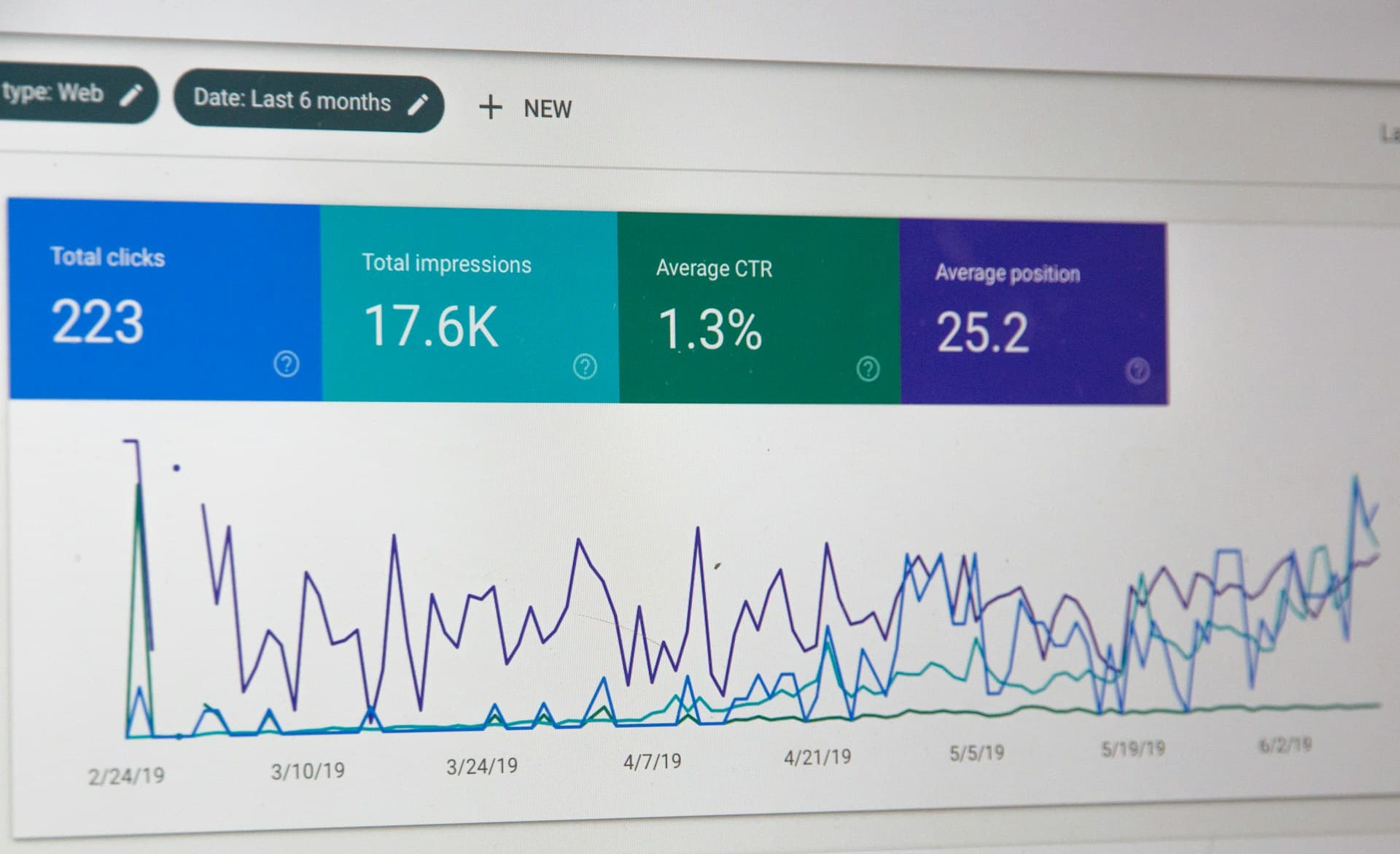
You've launched your startup's website. People are visiting — but do you know how many? Where they're coming from? Which pages they read? Without analytics, you're flying blind. Google Analytics 4 (GA4) answers all of these questions, for free, and you can set it up in about 15 minutes.
[!TIP] TL;DR — Google Analytics 4 is completely free. It tracks your website visitors, traffic sources, page views, and user behavior. Setup involves two steps: creating a GA4 property in Google Analytics, and pasting one snippet of code (or a tag ID) into your website. No developer needed if you use a website builder like Webflow, Squarespace, Wix, or WordPress.
What Is Google Analytics 4, and Why Do You Need It?
Google Analytics 4 is a free tool that shows you exactly what's happening on your website:
- How many people visit — Daily, weekly, monthly visitor counts
- Where they come from — Google search, social media, direct, referrals
- What they do on your site — Which pages they visit, how long they stay, what they click
- Where they drop off — Which pages cause people to leave
- What devices they use — Desktop, mobile, tablet, and which browsers
- Which countries they're in — Geographic breakdown of your audience
Why this matters for founders:
- You'll know if your marketing campaigns are actually driving traffic
- You'll see which content resonates (high time-on-page) vs. what bounces
- You'll understand your users better before building features
- Investors often ask "how's your traffic?" — GA4 gives you a real answer
- You'll know if your site goes down or traffic suddenly spikes
This is all free. There's no reason not to have it.
What You'll Need
- A Google account (your Gmail or Google Workspace email)
- Access to your website's code or settings — either a website builder admin panel (Webflow, Squarespace, Wix, WordPress, etc.) or the ability to ask your developer to paste one line of code
[!TIP] Using Webflow, Squarespace, Wix, Framer, or WordPress? These platforms have built-in Google Analytics fields where you paste a Tag ID — no code at all. This guide covers both the no-code route (paste a Tag ID) and the copy-paste code route.
Step-by-Step: Setting Up Google Analytics 4
Create a Google Analytics Account
Go to analytics.google.com and sign in with your Google account.
Click "Start measuring" (if this is your first time) or "Create account" from the top-left menu.
Fill in:
- Account name — Your company name (e.g. "Acme Inc."). This is the top-level container for all your properties.
- Data sharing settings — You can leave these at their defaults. They control whether Google uses your data to improve their products.
Click Next.
Create a Property
A "property" in GA4 is one website (or app). Most startups have one property — their main website.
- Property name — Your website name (e.g. "yourcompany.com Main Site")
- Reporting time zone — Your company's local timezone
- Currency — Your primary currency for any revenue tracking
Click Next, then fill in basic business details (industry category, company size, how you plan to use Analytics). This helps Google suggest useful reports.
Click Create, then accept the terms of service.
One property per website. If you have a marketing site (yourcompany.com) and a separate app (app.yourcompany.com), you'd typically create one property for each. For now, just set up your main site.
Set Up a Data Stream (Choose: Web)
A "data stream" is the connection between your website and Google Analytics. GA4 supports web, iOS, and Android. Choose Web.
Enter:
- Website URL — Your full domain (e.g.
https://yourcompany.com) - Stream name — Something like "Main Website"
Click Create stream.
You'll now see your stream details, including:
- Measurement ID — A code that looks like
G-XXXXXXXXXX. Copy this — you'll need it in the next step.
Add the Tracking Code to Your Website
This step connects your website to Google Analytics. You have two options:
Option A — Website Builder (No Code)
If you use a website builder, find the Google Analytics or Google Tag setting:
| Platform | Where to find it |
|---|---|
| Webflow | Project Settings → Integrations → Google Analytics → paste your G-XXXXXXXXXX |
| Squarespace | Settings → Advanced → External Services → Google Analytics → paste your G-XXXXXXXXXX |
| Wix | Dashboard → Marketing & SEO → Marketing Integrations → Google Analytics |
| WordPress | Install the "Site Kit by Google" plugin → connect your Analytics account |
| Framer | Project Settings → Analytics → paste your G-XXXXXXXXXX |
| Shopify | Online Store → Preferences → Google Analytics → paste your G-XXXXXXXXXX |
Save your changes, and you're done with this step.
Option B — Custom Website (Ask Your Developer)
If your site is custom-built (Next.js, React, etc.), share this message with your developer:
"Please add the Google Analytics 4 tag to our site. The Measurement ID is
G-XXXXXXXXXX. It should go in the<head>section of every page."
For Next.js specifically, it goes in _app.tsx or layout.tsx. For any HTML site, it's a <script> tag in the <head>. Your developer will know exactly what to do.
Don't add the same Measurement ID twice. If Analytics was previously set up on your site (Universal Analytics / GA3 was common before GA4), check with your developer before adding it again. Duplicate tags inflate your numbers.
Verify It's Working
Give it 24–48 hours for data to start populating. But you can verify immediately:
- Go to analytics.google.com → your property → Reports → Realtime
- Open your website in a new browser tab
- Watch the Realtime report — you should see "1 user in the last 30 minutes" appear within about 30 seconds
If you see yourself in the Realtime report, it's working.
Exclude your own visits. Your activity inflates your traffic numbers. In Chrome, install the "Google Analytics Opt-out" extension, or simply filter your own IP address in GA4 Settings. This keeps your data clean.
Explore Your First Reports
Once data starts coming in (after a day or two), here are the most useful reports for a founder:
- Reports → Acquisition → Traffic acquisition — See where your visitors come from (Google, social, direct, etc.)
- Reports → Engagement → Pages and screens — See which pages are most visited and how long people spend on each
- Reports → Engagement → Events — See what actions users take (scrolls, clicks, form submits)
- Reports → Demographics → Overview — See where in the world your visitors are
Bookmark GA4. Make it a weekly habit to check your top-of-funnel numbers — total users, new users, and top traffic sources. This takes 5 minutes and gives you a clear pulse on whether your marketing is working.
You Have Real-Time Insight Into Your Website!
Google Analytics 4 is live on your site. You now have access to detailed, real-time data about your visitors — completely free. Check your Realtime report, explore your traffic sources, and start making decisions based on data.
Everything at a Glance
| Item | Detail |
|---|---|
| Tool | Google Analytics 4 (GA4) |
| Cost | Free |
| Setup Time | ~15 minutes |
| Data Delay | Realtime reports: instant. Standard reports: 24–48 hours |
| What It Tracks | Visitors, traffic sources, page views, user behavior, devices, geography |
| No-Code Setup | Yes — Webflow, Squarespace, Wix, WordPress all support paste-in Measurement ID |
| Mobile App Tracking | Yes — separate iOS/Android data streams available |
| Data Retention | 14 months (default), extendable to 50 months in settings |
| Account URL | analytics.google.com |
Frequently Asked Questions
Is Google Analytics 4 really free? Yes, completely. There's also a paid version called Google Analytics 360 for enterprise companies, but GA4 is free for virtually all startups and small businesses.
What happened to the old Google Analytics (Universal Analytics)? Universal Analytics (also called GA3) was sunset by Google in 2023. GA4 is the current version and is what you should set up. They work differently under the hood, but for founders, GA4 is simpler and more powerful for tracking user behavior.
How long until I see data? The Realtime report shows visitors instantly. Standard reports (like traffic acquisition and page engagement) typically show data after 24–48 hours. Historical data starts from the day you install the tag — GA4 can't track visits that happened before installation.
Will Google Analytics slow down my website? The impact is minimal. The GA4 tag is lightweight and loads asynchronously (it doesn't block your page from loading). On modern websites, the performance impact is negligible.
Does Google Analytics track individual users by name? No. GA4 tracks anonymous sessions and user events. You see aggregate data like "150 users visited from London" but not individual identities. This is compliant with privacy regulations, though you should still disclose analytics use in your privacy policy.
Do I need to show a cookie consent banner? This depends on your target market. In the EU, GDPR requires consent for analytics cookies. In other regions, requirements vary. If you have European visitors, consult a legal resource about GDPR compliance and consider a consent management platform.
Can I track conversions (e.g. sign-ups or purchases)?
Yes. GA4 lets you mark specific events as "conversions" — for example, when someone completes a sign-up form or visits a /thank-you page. This is a slightly more advanced setup — your developer can help configure specific conversion events.
This guide is based on publicly available documentation from Google Analytics at analytics.google.com. Features and interface may change — always refer to Google's official documentation for the most current instructions.

Startup Resource Guides
The Joistic team builds AI-powered design tools that help founders and developers visualize app ideas before writing a single line of code.